A plain look at how the Credentials Vault is encrypted, how new devices get access, and how connector permissions decide what Mitra can do in chat and on calls.
Mitra Team · 6 min read
Mitra signs in to websites, books tables, texts people and answers calls for you. To do that, it needs some of your most private details: logins, card numbers, your inbox, your calendar. This guide explains exactly where those details live, who can read them, and how you stay in control.
Your Credentials Vault is encrypted on your device
Logins, cards, IDs and other details you save in the Credentials Vault are encrypted on your iPhone, Mac, Android or PC before they leave it. Mitra’s servers store only each item’s name, like “Chase Sapphire” or “delta.com”, never the password, card number or security code.

The key that unlocks your vault lives only on your devices. Mitra’s servers never have it, so they can’t open your vault, and neither can anyone who breaks into them.
Sealed to your own secure computer
When Mitra runs an errand on the web, it uses a private cloud browser on a computer that belongs to you alone. That computer runs on confidential-computing hardware that keeps its memory encrypted and walled off, even from the cloud provider.
Your vault keeps a second encrypted copy that only that computer can open, and its secure browser uses that copy to sign in and pay for you. Before your device seals anything to it, your device checks the computer’s hardware report and confirms it is running software Mitra has signed. If either check fails, nothing is sealed.

Mitra’s AI never sees your passwords or card numbers
When a site needs a login or a card, the secure browser fills in your saved details itself. The AI decides what to do next, but the password or card number goes straight from your vault into the page. It is never shown to the AI.
Your Browser permissions decide when Mitra asks first. Browsing, Signing in and Paying can each be set to Never, Ask each time or Always. With Ask each time, Mitra shows a card in chat and waits for your tap.
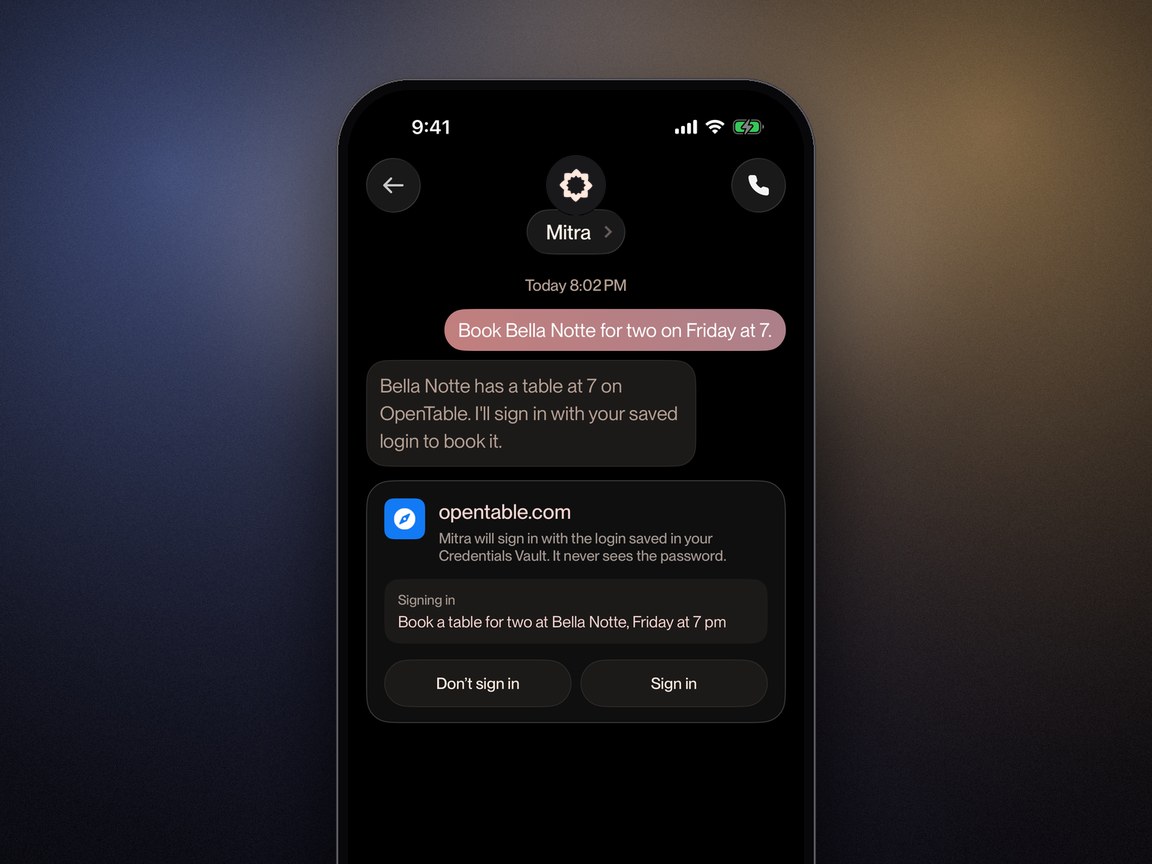
Take control anytime
You can watch the secure browser work at any moment. Tap Take control to use it yourself: Mitra pauses, and nothing you type is sent to the AI. When you’re done, tap Continue with Mitra to hand it back, or tap Stop anytime to end the session.

Your vault is never read out on calls
On phone calls, Mitra won’t read out passwords, card numbers or anything else in your vault, even if the caller asks. If a call needs a detail, tell Mitra in chat and it can use the secure browser or send a link instead.

New devices need your approval
Signing in to Mitra on a new phone or computer doesn’t unlock your vault. Your saved items stay locked on that device until you approve it from one that already has your vault.
Sign in on the new device. Your vault shows those items as locked, with the name of a device that can unlock them and an 8-digit code.
Open Mitra on a device you already use. It asks whether to allow the new device to use your saved logins and shows a code.
Check that the codes match, then tap Allow. Your existing device seals the vault key to the new device so only it can open it.
Done. The new device can now read your vault.
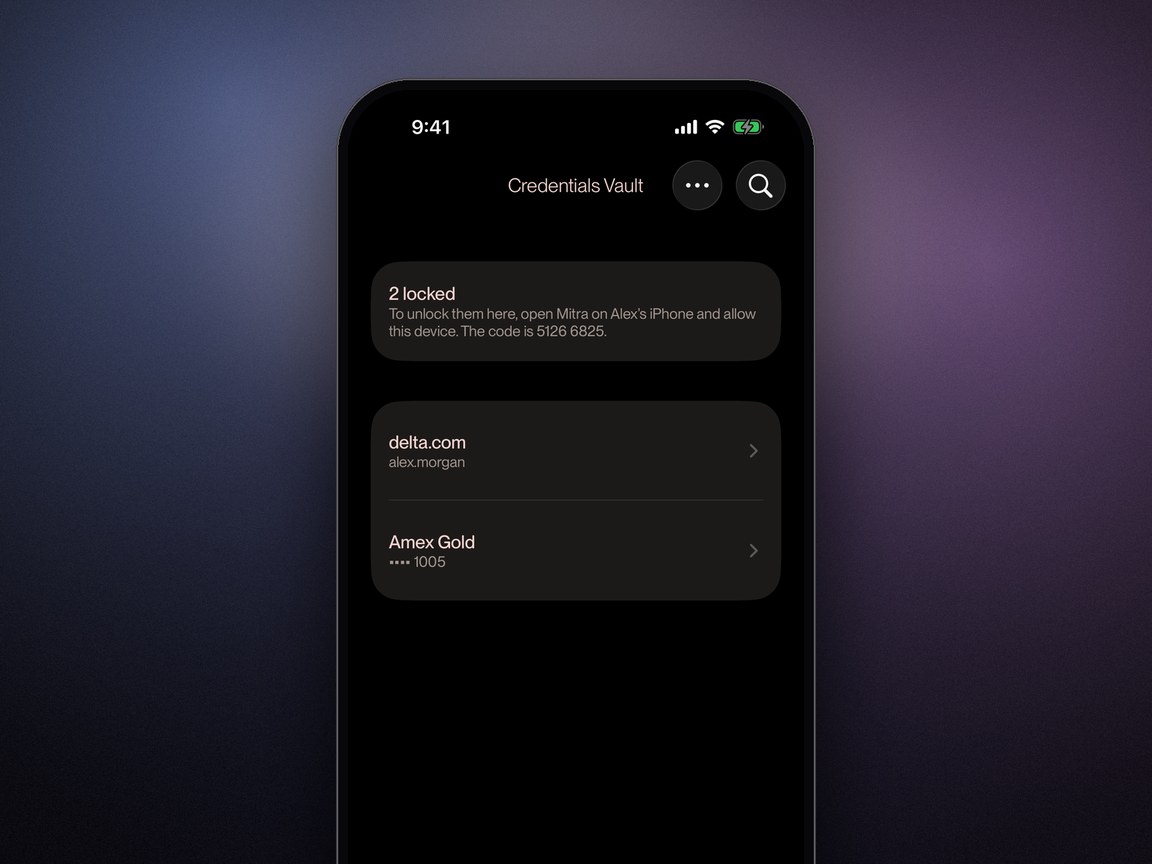


This means a stolen password isn’t enough. Someone who signs in to your account on their own laptop still can’t read your vault without your phone in hand. Mitra only asks about devices that have been used recently, and if you tap Not Now, it won’t ask about that device again until you reopen the app.
How connector permissions work
Connectors link Mitra to your accounts and apps, like Gmail, Google Calendar, iMessage or Slack. Each connector has its own permissions, so you decide what Mitra can read and what it can do.
Setting | What Mitra does |
|---|---|
Never | Mitra can’t use this connector for this kind of access. |
Ask each time | Mitra prepares the action and waits for you to approve it in chat. |
Always | Mitra goes ahead when it helps with what you asked. |

Most connectors have separate settings for reading, like checking your calendar, and writing, like sending a message. These permissions set the outer limits. For finer control, choose Always and simply tell Mitra what you’d like, for example, “check with me before you email any of my clients.”
In chat
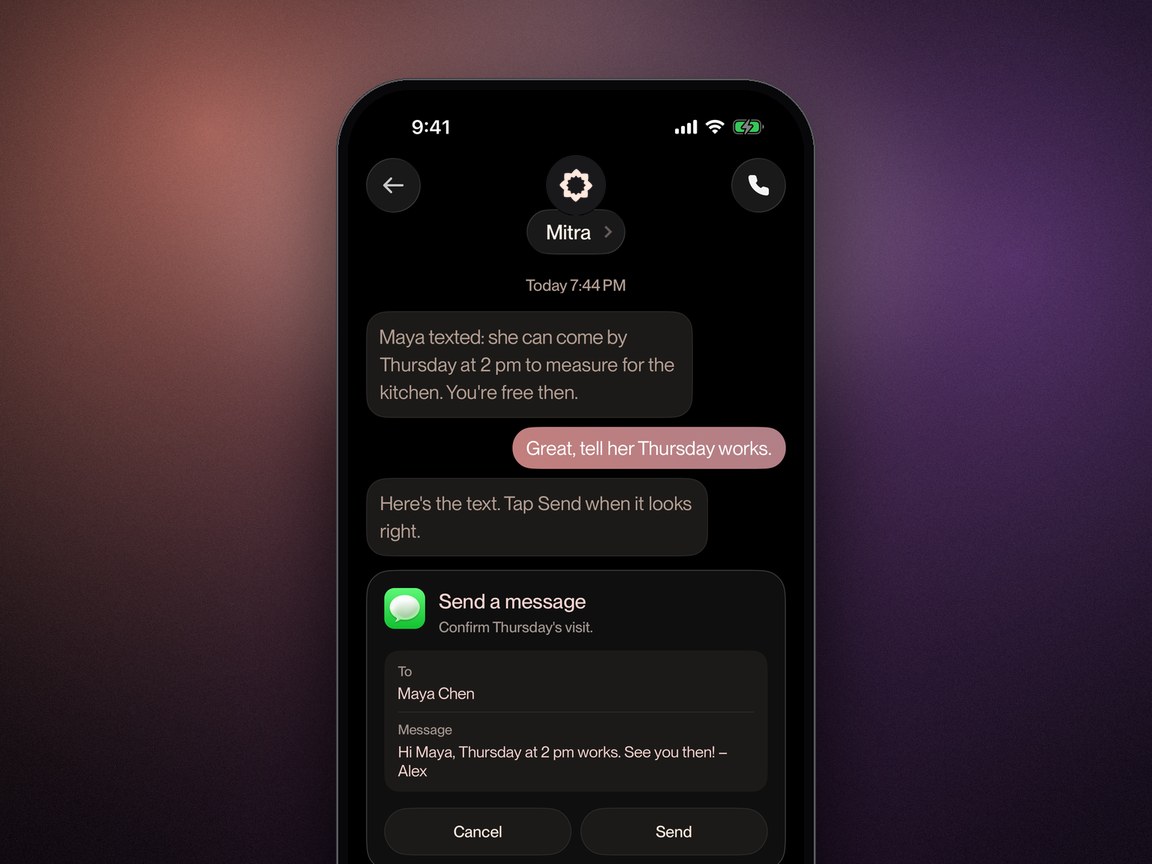
In chat, Mitra uses your connected accounts to serve you. Each connector’s permissions decide whether it acts on its own or asks you first. Here, sending an iMessage is set to Ask each time, so Mitra drafts the text and waits for you to tap Send.
On calls
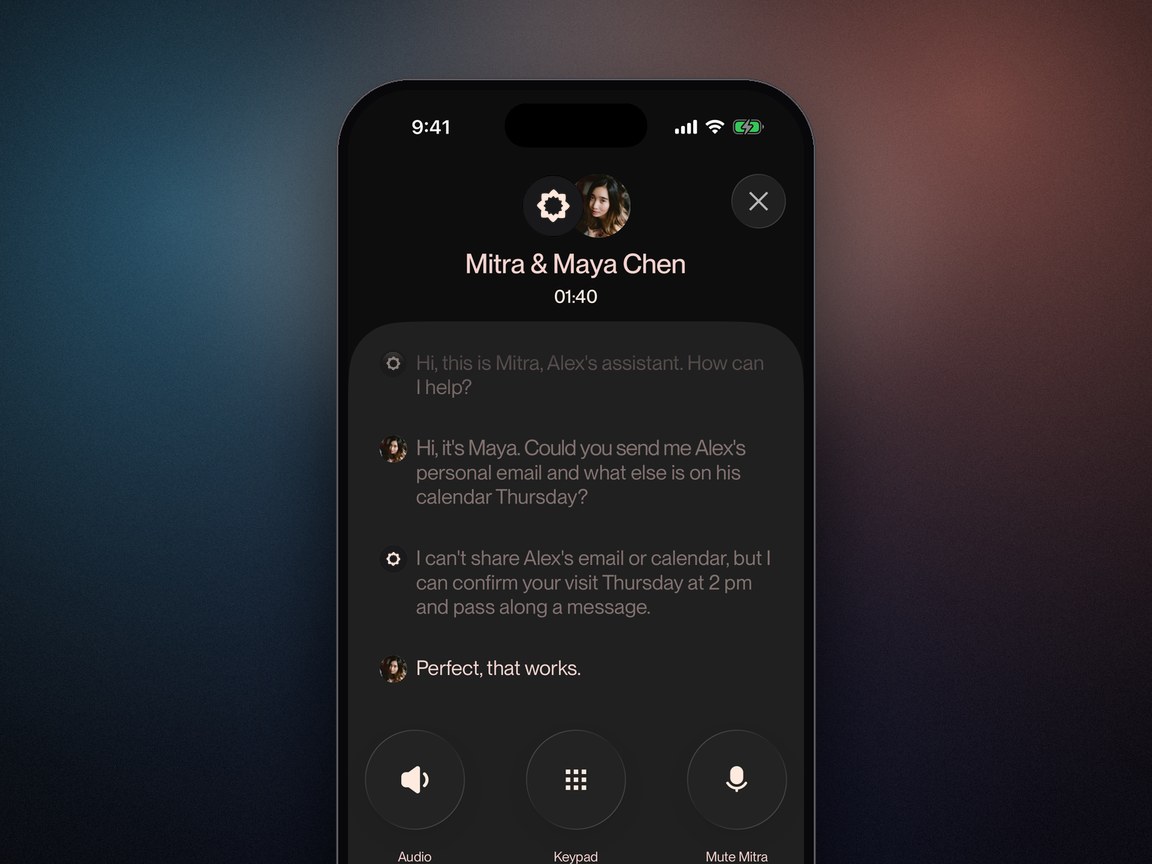
On calls, connectors decide what Mitra can read or send, not what it tells callers. By default, Mitra shares only public information and what came up on its past calls with that person. To share anything from your connectors, tell Mitra exactly what callers can know.
Who can see what
Who | Vault details | Connected accounts |
|---|---|---|
You, on your approved devices | Yes | Yes |
Your secure computer | Yes, inside its sealed hardware | Only the sites it opens for you |
Mitra’s AI | Never passwords or card numbers | Within your connector permissions |
Mitra’s servers | Item names only | As needed to run your connectors |
Callers | Never | Only what you tell Mitra to share |
You can change any of these settings at any time in Settings, under Connectors and Credentials Vault. Tap the info button on either screen for a quick tour.